


Setting Up Cron Jobs in Enhance
Learn how to create and manage cron jobs in Enhance so your website can run backups, cleanup tasks, and other scheduled jobs automatically.
4 min read
Cron jobs are a simple way to make your website do routine work on its own. Instead of logging in every day to run a backup or clear cache, you can set it up once and let the system handle it.
They are useful for things like:
- running a backup
- clearing temporary files or cache
- sending a daily report
- running a script for maintenance
- triggering scheduled tasks for a website app
If you use cPanel instead of Enhance, the general guide is here: Setting Up Cron Jobs.
Where to find cron jobs in Enhance
- Log in to your Enhance panel.
- Go to Websites in the sidebar and open the website you want to manage.
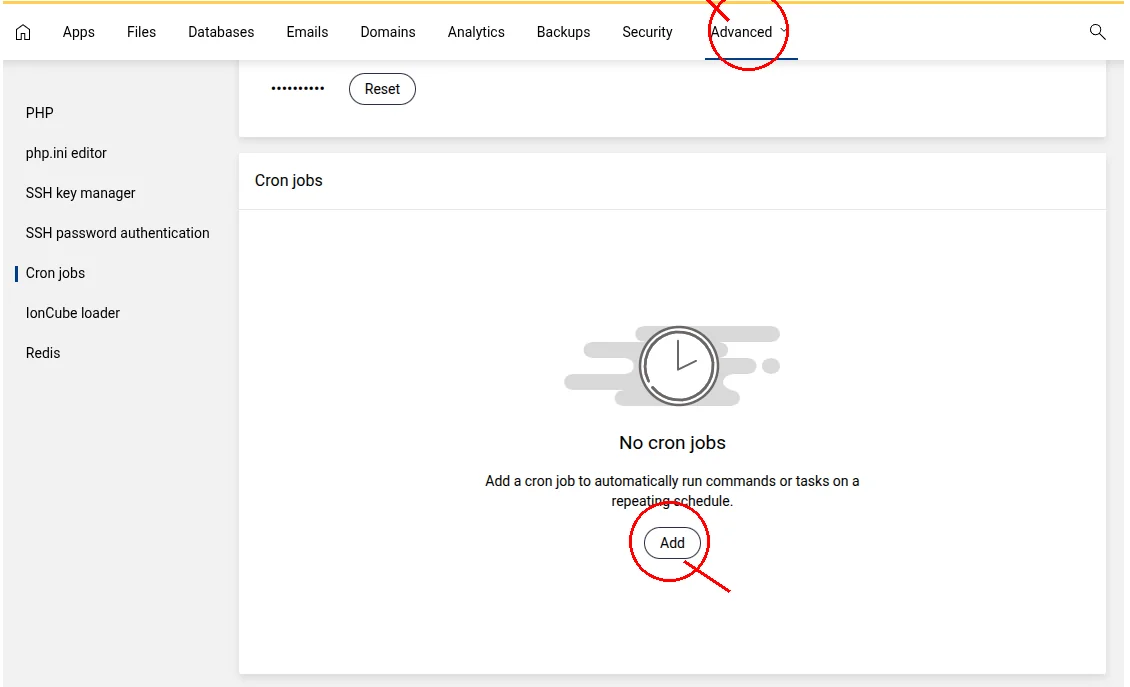
- Open Advanced → Developer Tools.
- Click Cron Jobs.
The button names and exact layout can vary a little depending on the version of Enhance you are using, but the overall process is the same.
Choose how often the job should run
When you create a cron job, you usually set a schedule with five values:
- minute
- hour
- day of the month
- month
- day of the week
Here are a few common examples:
- every 5 minutes:
*/5 * * * * - every hour:
0 * * * * - every day at 3am:
0 3 * * * - every Sunday at midnight:
0 0 * * 0
If you are not sure which schedule to use, start simple. A daily or hourly job is often enough for most website tasks.
Enter the command
The command is the actual task you want to run. This can be a script, a backup command, or a PHP command for your website.
A typical example looks like this:
/usr/bin/php /home/username/public_html/backup.php
You should use the full path to the command and the files if possible. Cron jobs often run in a more limited environment than a normal login shell, so short commands like php or wp may not work unless the full path is used.
Each Enhance website lives in its own isolated environment, so the path to your files may not be public_html. Open the File Manager for your site and copy the real path to your document root before pasting it into a cron command. The examples below use /home/username/public_html as a placeholder — replace it with your actual path.
Good examples to start with
Backup job
/usr/bin/zip -r /home/username/backups/site-$(date +\%Y\%m\%d).zip /home/username/public_html
The % signs are escaped as \% here because a raw crontab line treats % as a special character. If Enhance’s cron form doesn’t accept the backslashes, use plain %Y%m%d instead.
Cache cleanup
/usr/bin/find /home/username/public_html/cache -type f -mtime +7 -delete
WordPress-related task
If you are running a WordPress site and using WP-CLI, your command may look similar to this:
/usr/local/bin/wp cache flush --path=/home/username/public_html
Only use this if WP-CLI is installed and working on your server.
Save and test it
After you save the job, test it first by running the command manually. If it works when you run it yourself, it is much more likely to work as a scheduled task.
It is also a good idea to check your email or logs after the first run. That helps you confirm the job ran and shows whether anything went wrong.
Common problems
Here are the most common issues people run into:
- The job does not run at all: the command may be wrong, or the path may be incorrect.
- The job runs but does nothing: the script may not be executable, or it may need a different path.
- The job runs at the wrong time: the server time may be different from your local time.
- You get too many emails: you can send output to a log file or silence it with
>/dev/null 2>&1.
A simple example with output hidden looks like this:
/usr/bin/php /home/username/public_html/backup.php >/dev/null 2>&1
When cron jobs are most useful
Cron jobs are a good fit when you want something to happen automatically without having to remember it. They are especially helpful for website maintenance, backups, cleanup work, and recurring reports.
What to read next
- Setting Up Cron Jobs for the general version
- Enhance Control Panel Guide for more on using the Enhance panel
Last updated 30 Jun 2026, 00:00 +0200.