


Managing Databases on Enhance
How to create and manage MySQL/MariaDB databases and database users on the Enhance control panel, and access phpMyAdmin for your website.
4 min read
Most web applications need a database to store their content. WordPress, Joomla, and almost every CMS keep posts, users, and settings in a MySQL database. On the Enhance control panel, databases are managed per website, and each site runs in its own isolated environment.
This guide covers creating a database, adding a database user, and opening phpMyAdmin on GoZen cloud and VPS plans.
If you use cPanel instead of Enhance, see Creating and Managing MySQL Databases for the equivalent steps there.
Where to find databases in Enhance
- Log in to your Enhance panel.
- Go to Websites in the sidebar and open the website you want to manage.
- Click Databases in the top navigation.
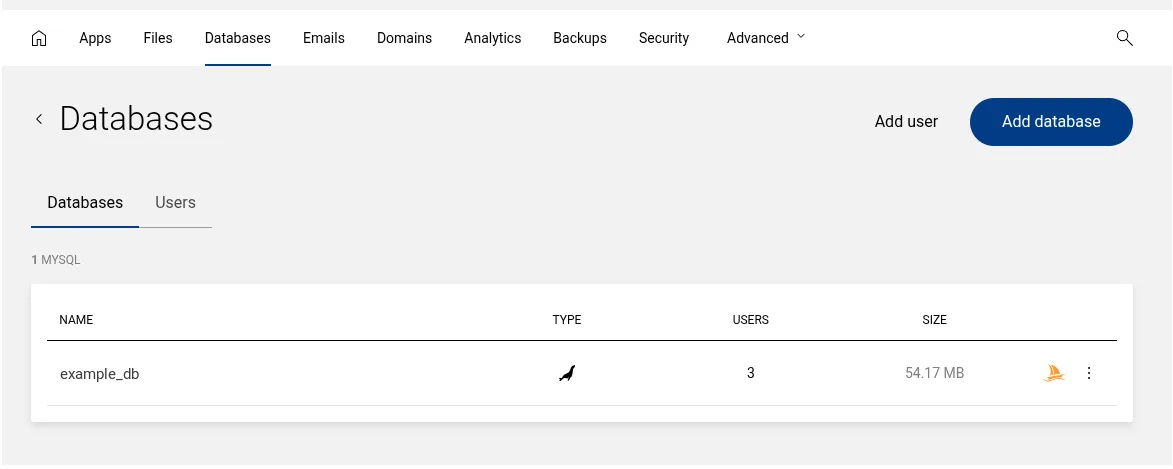
The Databases page has two tabs, Databases and Users, with Add user and Add database buttons in the top-right corner. Each database row shows its name, type, number of attached users, and size, along with a phpMyAdmin icon and a menu (⋮) for editing or deleting it. The exact layout can vary slightly between Enhance versions, but the process is the same.
Create a database
- On the Databases page, click Add database.
- Enter a name for the database.
- Fill in the Add database user form. You can either:
- create a new user (set a username and password), or
- select an existing user to attach to this database.
- By default, All database privileges is enabled, which is what most applications need. You can uncheck it if you want to grant a limited set of permissions.
- Click Add.
Enhance creates the database and links the user to it in one step. Make a note of the database name, username, and password — you’ll need all three when you configure your application.
If you install an app through Enhance’s one-click installer (like WordPress), the database is created for you automatically. You only need these manual steps when setting up an app yourself or adding a second database.
Add a database user separately
You can also create a user without tying it to a database at creation time, then grant access afterwards:
- On the Databases page, click Add user.
- Complete the form (username and password).
- Optionally select an existing database to grant this user access to.
- Click Add.
This is useful when you want one user to have access to several databases, or when you’re setting up access before the database exists.
Access phpMyAdmin
Enhance deploys phpMyAdmin automatically for managing your data directly — browsing tables, running SQL queries, importing and exporting. On the Databases page, click the phpMyAdmin icon on the right-hand side of the database’s row. Enhance uses single sign-on, so you’re logged straight into the correct database server without re-entering credentials or picking a server manually.
phpMyAdmin is powerful and gives direct access to your live data. It’s best suited to experienced users — a wrong query can change or delete records permanently. Take an export first if you’re about to make bulk changes.
MySQL, MariaDB, and PostgreSQL
Which database engine is available depends on how your server’s database role was set up:
- MySQL or MariaDB — the standard choice, and what WordPress and most PHP applications expect.
- PostgreSQL — supported on newer Enhance versions, but primarily for developers. Note that WordPress and most common PHP CMSs are not compatible with PostgreSQL, so only choose it if your application specifically requires it. The All database privileges option is not available for PostgreSQL databases.
If you’re running a typical CMS, stick with MySQL/MariaDB.
Common problems
- App can’t connect to the database: double-check the database name, username, and password, and make sure the user is attached to that database. For the host, most applications on the same server use
localhost. - “Access denied” errors: the database user may not have privileges on that database. Re-check that All database privileges was granted, or attach the user again.
- Forgot the password: you can’t view an existing password, but you can set a new one by editing the database user, then update your app’s config to match.
Related articles
- Backups on Enhance — back up your database before major changes
- Enhance Control Panel Guide — overview of the whole panel
- Creating and Managing MySQL Databases — the cPanel equivalent
Last updated 01 Jul 2026, 00:00 +0200.