On this page
web
Installing WordPress on Shared Hosting
Deploy WordPress on your GoZen Host shared hosting. Step-by-step, no fluff.
WordPress needs a database, PHP, and a web server. GoZen Host shared hosting has all three. You just need to connect them.
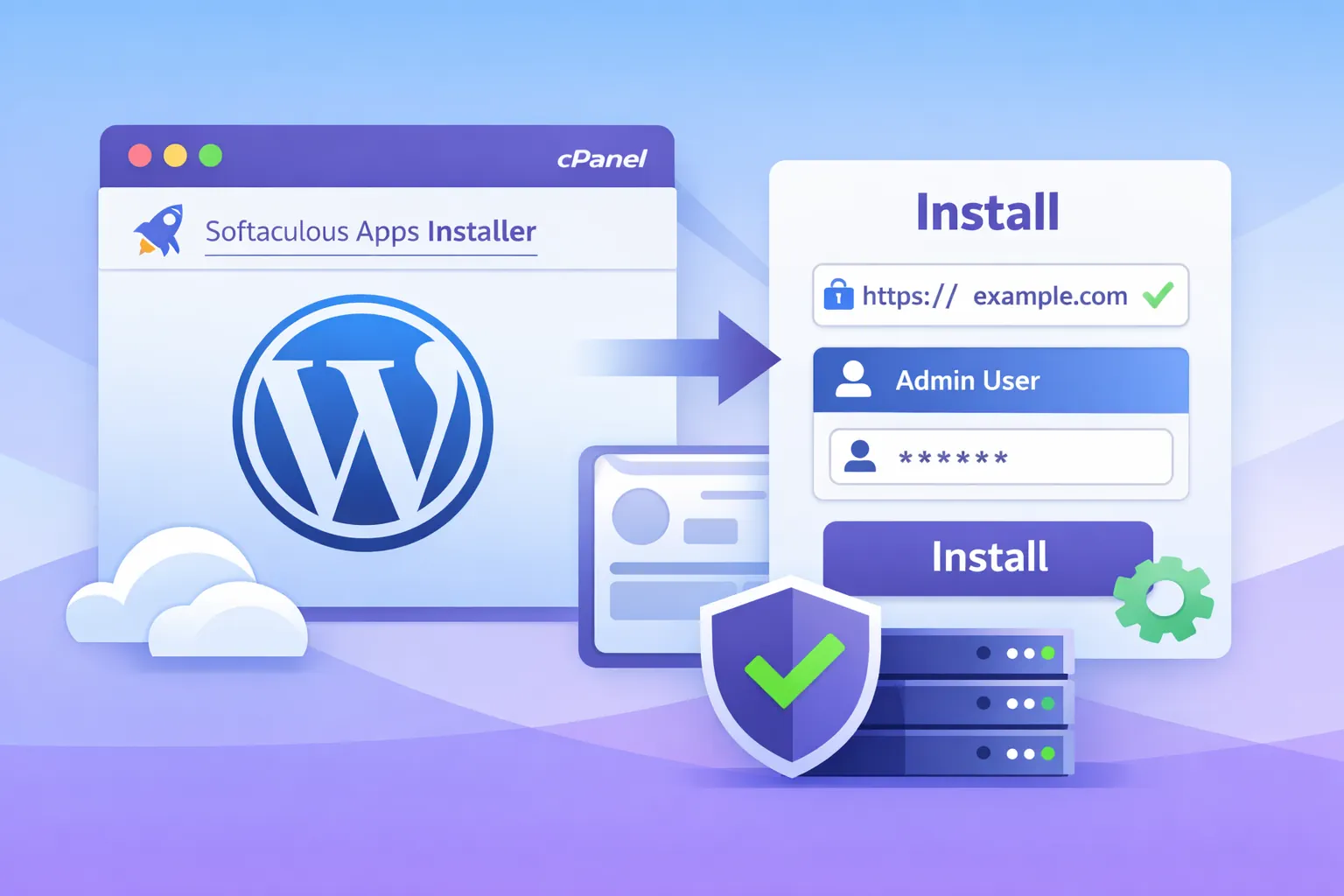
Option 1: Softaculous (Fastest)
Softaculous is a one-click installer built into cPanel.
- Log into cPanel
- Go to Software → Softaculous Apps Installer
- Find WordPress and click Install
- Fill in:
- Choose Domain: pick your domain
- In Directory: leave blank to install at the root, or enter
blogfor a subfolder - Site Name and Site Description
- Admin Username: don’t use
admin(bots target it) - Admin Password: minimum 12 characters
- Admin Email: your real email
- Click Install
Done. Softaculous sets up the database, configures
wp-config.php, and installs WordPress. Usually takes under 30 seconds.Option 2: Manual Install
Use this if you want more control or Softaculous isn’t available.
Step 1: Create a Database
- Go to Databases → MySQL Databases in cPanel
- Create a new database (e.g.,
wp) - Create a new user with a strong password
- Add the user to the database with All Privileges
Write down the database name, username, and password. You’ll need them in Step 3. Remember, cPanel prefixes both with your account username.
Step 2: Upload WordPress
Step 3: Run the Installer
- Open
https://yourdomain.comin your browser - Select your language
- Enter your database details:
| Field | Value |
|---|---|
| Database Name | The name you created (e.g., gozen_wp) |
| Username | The database user you created |
| Password | The database user password |
| Database Host | localhost |
| Table Prefix | wp_ (change this for better security, e.g., gzn_) |
- Click Run the installation
- Set your site title and admin account
- Log in at
yourdomain.com/wp-admin
Post-Install Checklist
After WordPress is running:
- Delete the
Hello DollyandAkismetplugins (or activate Akismet if you want comment spam filtering) - Delete unused themes. Keep only your active theme plus one default
- Set Settings → Permalinks to “Post name”
- Install a security plugin (Wordfence or Solid Security)
- Verify SSL is working. Your site should load with
https://
Change the default wp_ table prefix if you went with the manual install. It’s one of the first things automated attacks target.
Troubleshooting
| Problem | Fix |
|---|---|
| “Error establishing a database connection” | Check the database name, user, and password in wp-config.php. Make sure the user is assigned to the database |
| White screen after install | Enable debug mode: add define('WP_DEBUG', true); to wp-config.php |
| Can’t upload themes/plugins (permission error) | Check file permissions: 755 for directories, 644 for files |
| 404 on all pages except homepage | Go to Settings → Permalinks and click Save Changes (regenerates .htaccess) |
| “Your PHP version does not meet requirements” | Contact support to update your PHP version in cPanel → MultiPHP Manager |
What to Do Next
- Managing Files with cPanel File Manager: uploading themes, editing config files
- SSL Certificates: make sure HTTPS is working
- Backups and Restores: set up automated backups before going live
Last updated 05 Apr 2026, 00:00 +0200.
Was this page helpful?