Setting Up a Professional Email Address
Create a business email with your own domain name. No Gmail or Yahoo - your email, your brand.
A professional email address uses your own domain (you@yourbusiness.com) instead of a free provider (yourbusiness@gmail.com). It costs nothing extra on GoZen Host because email hosting is included with every shared and WordPress hosting plan.
Why It Matters
- Credibility:
sarah@smithdesign.comlooks professional.smithdesign2019@gmail.comdoesn’t - Brand consistency: every email you send reinforces your domain name
- Control: you own the address. No risk of losing it if a third-party service changes policies
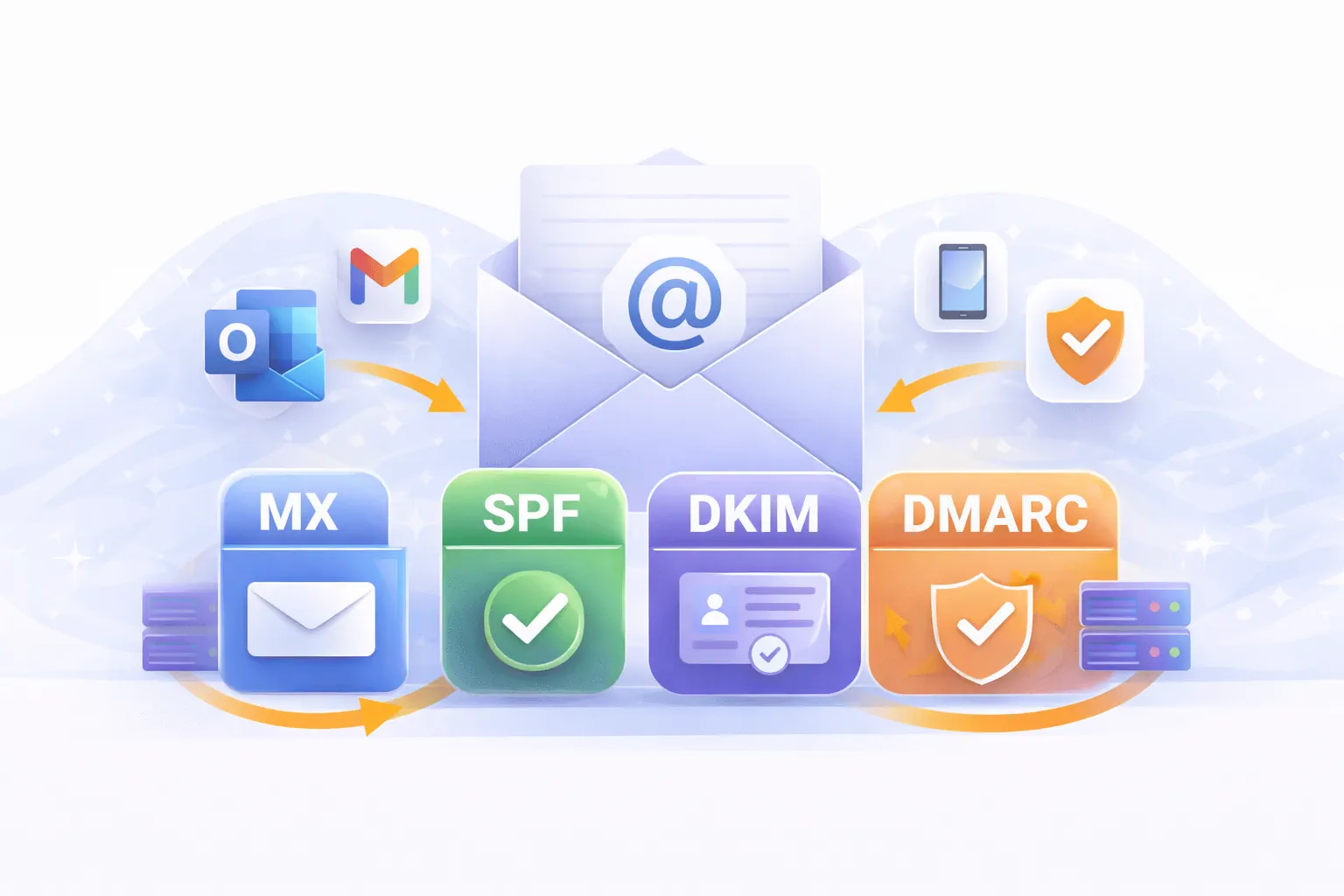
- Deliverability: emails from your own domain with proper authentication (SPF, DKIM, DMARC) land in inboxes, not spam
What You Need
- A domain name (e.g.,
yourbusiness.com) - A GoZen Host hosting plan (shared, WordPress, or VPS with cPanel)
- DNS pointed to GoZen nameservers
If you don’t have a domain yet, register one through GoZen or transfer an existing domain.
Creating Your First Email Address
- Log into cPanel
- Go to Email > Email Accounts
- Click Create
- Fill in:
- Username: the part before the @ (e.g.,
info,hello,sarah) - Domain: select your domain from the dropdown
- Password: use a strong password (minimum 12 characters)
- Storage quota: set a mailbox size or leave as unlimited
- Username: the part before the @ (e.g.,
- Click Create Account
Your email address is live immediately. No DNS changes needed if your domain already points to GoZen.
Recommended Addresses to Create
| Address | Purpose |
|---|---|
info@ | General inquiries, your primary public-facing address |
hello@ | Friendly alternative to info@ |
support@ | Customer support (if applicable) |
admin@ | Administrative purposes, domain verification |
yourname@ | Personal business email |
You don’t need all of these. Start with one or two.
Accessing Your Email
Webmail (browser-based)
Three ways to access webmail:
- Go to
https://yourdomain.com/webmail - Go to
https://yourdomain.com:2096 - In cPanel, go to Email > Email Accounts > click Check Email next to the account
GoZen includes Roundcube as the default webmail client. It handles reading, composing, and basic folder management.
Desktop and Mobile Clients
For daily use, set up your email in a proper client:
- Gmail: Set Up GoZen Email in Gmail
- Outlook: Set Up GoZen Email in Outlook
- Apple Mail, Thunderbird, or any IMAP client: use these settings:
| Setting | Value |
|---|---|
| Incoming server | mail.yourdomain.com |
| Protocol | IMAP |
| Port | 993 |
| Security | SSL/TLS |
| Outgoing server (SMTP) | mail.yourdomain.com |
| SMTP Port | 465 |
| SMTP Security | SSL/TLS |
| Username | Your full email (e.g., info@yourdomain.com) |
| Password | The password you set in cPanel |
Making Sure Your Emails Don’t Go to Spam
Without email authentication, your messages may land in spam folders. Set up these three DNS records:
SPF (Sender Policy Framework)
Tells receiving mail servers which servers are allowed to send email for your domain.
- In cPanel, go to Email > Email Deliverability
- If there’s a warning next to your domain, click Repair
- cPanel adds the SPF record automatically
DKIM (DomainKeys Identified Mail)
Adds a digital signature to every email you send, proving it wasn’t tampered with.
- Same page: Email Deliverability
- Click Repair if DKIM shows a warning
- cPanel generates and installs the DKIM key
DMARC
Tells receiving servers what to do with emails that fail SPF or DKIM checks.
Add a DNS TXT record:
| Type | Name | Value |
|---|---|---|
| TXT | _dmarc | v=DMARC1; p=quarantine; rua=mailto:admin@yourdomain.com |
Verify all three at GoZen DNS Inspector. Enter your domain and check the email authentication section.
Forwarders and Aliases
Forward email to another address
If you want info@yourdomain.com to forward to your personal Gmail:
- Go to cPanel > Email > Forwarders
- Click Add Forwarder
- Enter the source address and the destination email
- Click Add Forwarder
The original email is delivered to the cPanel mailbox AND forwarded. If you only want forwarding (no local copy), you can skip creating the email account and just set up a forwarder.
Catch-all address
A catch-all catches emails sent to any address at your domain that doesn’t have a mailbox:
- Go to cPanel > Email > Default Address
- Set a default address to forward all unrouted email to
Catch-all addresses attract spam. Spammers guess addresses like sales@, billing@, test@, and a catch-all receives all of them. Only enable this if you have a specific need.
What to Do Next
- Set Up GoZen Email in Gmail - read your hosting email from Gmail
- Set Up GoZen Email in Outlook - read your hosting email from Outlook
- Email Delivery Problems - fix deliverability issues
Last updated 07 Apr 2026, 00:00 +0200.