Setting Up Email Accounts in cPanel
Create email addresses for your domain, configure mail clients, and set up forwarders.
Every GoZen Host shared hosting plan includes email hosting. You can create addresses like you@yourdomain.com and access them from webmail or any mail client.
Creating an Email Account
- Log into cPanel
- Go to Email → Email Accounts
- Click Create
- Fill in:
- Username - the part before the
@(e.g.,hello) - Domain - select your domain from the dropdown
- Password - use the generator or set your own (minimum 12 characters recommended)
- Storage quota - set a mailbox size limit or leave as unlimited
- Username - the part before the
- Click Create Account
Your new address is ready immediately. No DNS changes needed if your domain already points to GoZen nameservers.
Accessing Webmail
Three ways to get to your inbox:
- Direct URL: Go to
https://yourdomain.com/webmailorhttps://yourdomain.com:2096 - From cPanel: Go to Email → Email Accounts → click Check Email next to the account
- From the client area: Go to Services → My Services → your plan → Login to Webmail
GoZen Host includes Roundcube as the webmail client. It works fine for reading, sending, and basic folder management.
Setting Up a Mail Client
To use your email in Outlook, Thunderbird, Apple Mail, or a phone, you need these settings:
Incoming Mail
Outgoing Mail (SMTP)
| Setting | Value |
|---|---|
| Server | mail.yourdomain.com |
| Port | 465 |
| Security | SSL/TLS |
| Authentication | Required - same username and password |
Use IMAP unless you have a specific reason not to. IMAP syncs across devices. POP3 downloads messages and can delete them from the server.
Setting Up Email Forwarders
Forwarders send a copy of incoming mail to another address. Useful for routing info@yourdomain.com to your personal Gmail.
- Go to Email → Forwarders
- Click Add Forwarder
- Enter the address to forward from and the destination address
- Click Add Forwarder
The original mailbox still receives the email too (unless you delete the email account and only keep the forwarder).
Autoresponders
Set up an out-of-office reply or automatic acknowledgement:
- Go to Email → Autoresponders
- Click Add Autoresponder
- Set the start/stop dates, subject, and body
- Click Create
The autoresponder sends once per day to each unique sender - it won’t spam someone who emails you repeatedly.
Email Deliverability
If your emails are landing in spam, check these:
- SPF record - Go to Email → Email Deliverability in cPanel. If there’s a warning, click Repair to add the correct SPF record automatically
- DKIM - Same page. cPanel can generate and install the DKIM key for you
- DMARC - Add a basic DMARC record via Zone Editor:
_dmarc.yourdomain.com TXT "v=DMARC1; p=none; rua=mailto:you@yourdomain.com"
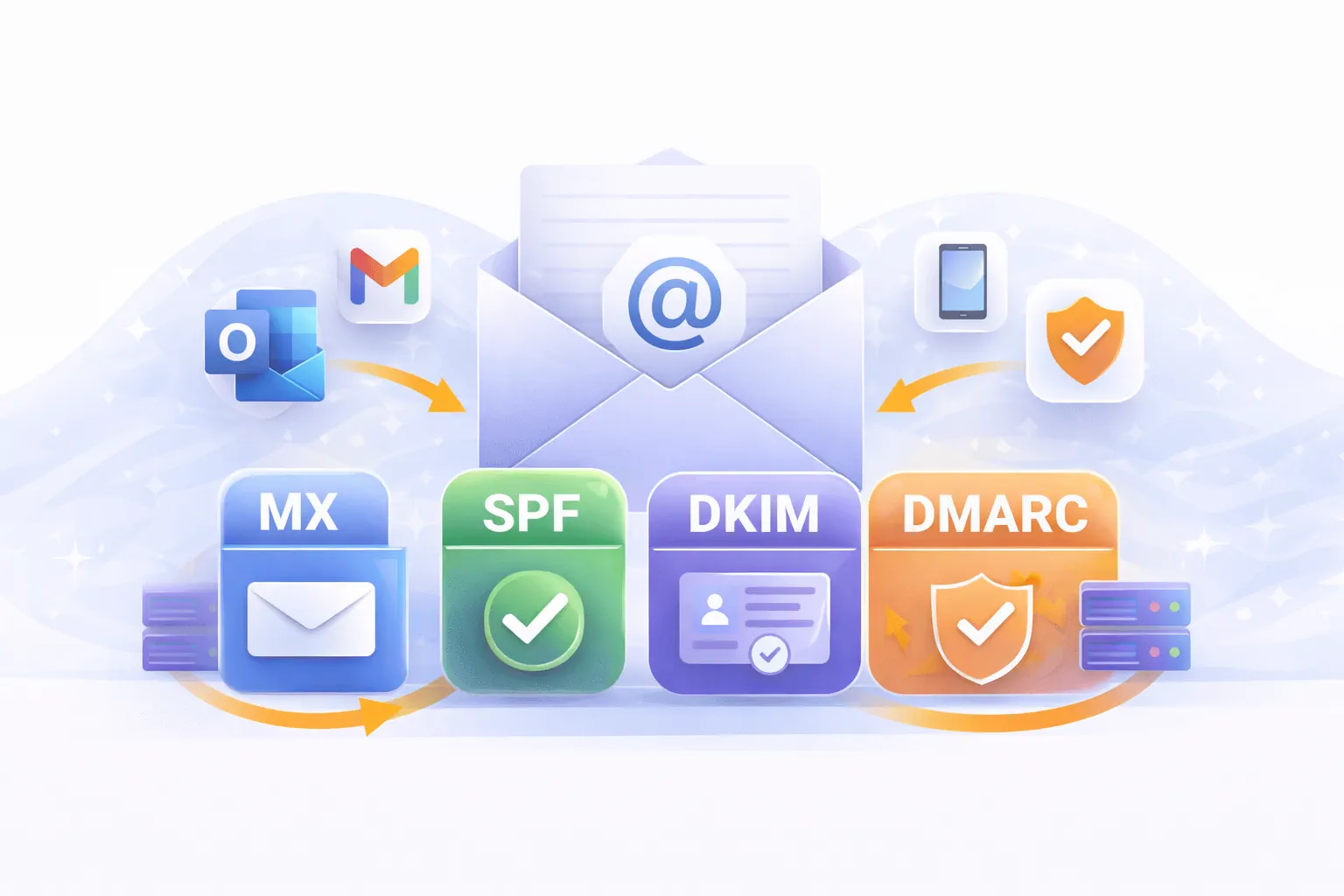
All three records (SPF, DKIM, DMARC) help email providers trust that your messages are legitimate.
Without SPF, DKIM, and DMARC records, your emails will likely be flagged as spam by Gmail, Outlook, and other providers.
Storage and Limits
Each email account has an optional storage quota. When a mailbox hits its limit, new emails are bounced back to the sender.
To change the quota:
- Go to Email → Email Accounts
- Click Manage next to the account
- Adjust the Allocated Storage Space
- Click Save
If you’re running low on overall disk space, check Email → Email Disk Usage to find large mailboxes.
What to Do Next
- GoZen DNS Inspector - verify your SPF, DKIM, and DMARC records are set up correctly
- Managing DNS Records - check your MX, SPF, and DKIM records
- SSL Certificates - make sure your webmail connection is encrypted
Last updated 05 Apr 2026, 00:00 +0200.