Pointing Your Domain to Your Server
A quick guide to connecting your domain name to your hosting - whether it’s shared, VPS, or dedicated.
You have a domain and a server. Here’s how to connect them so visitors reach your website when they type your domain.
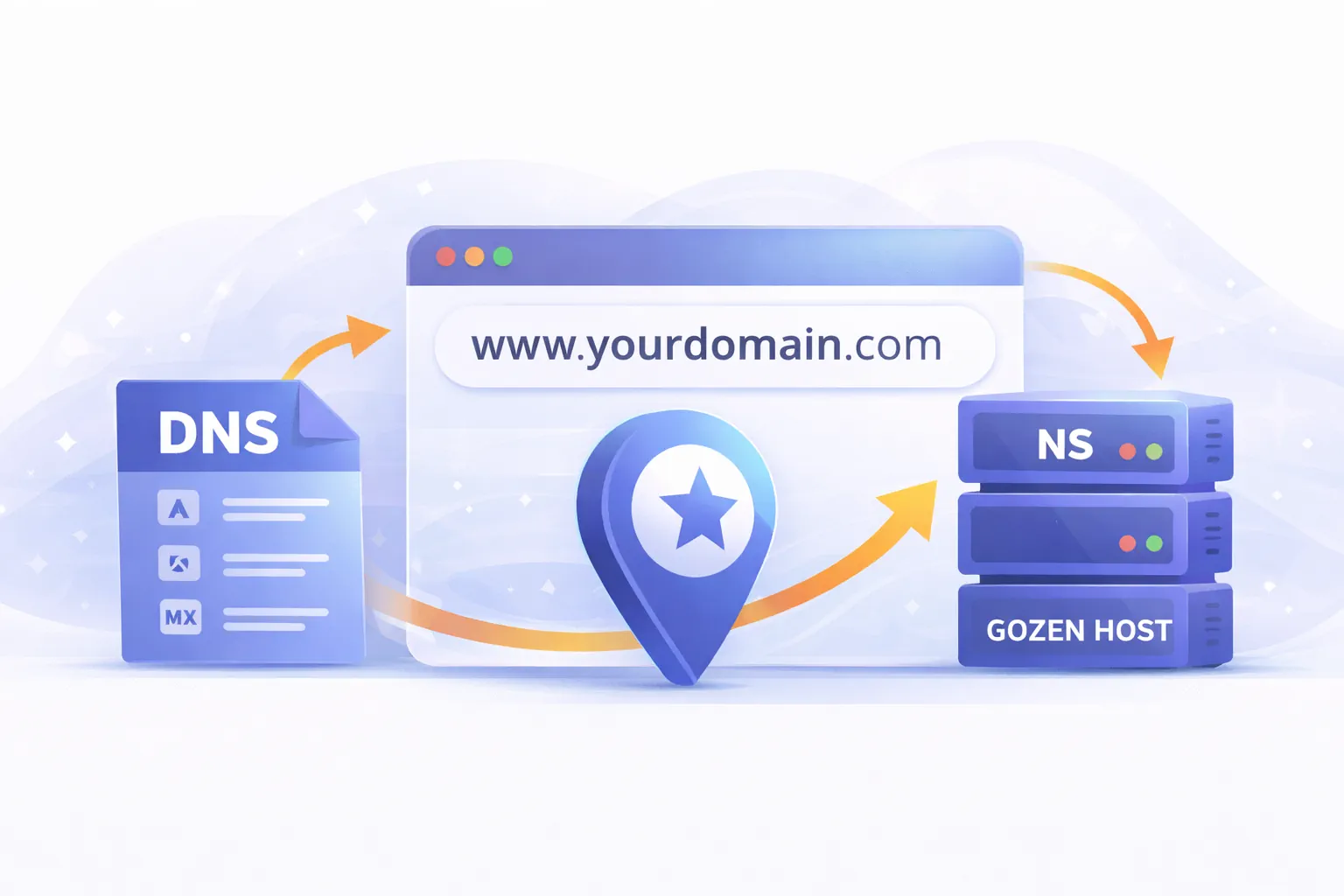
Option 1: Use GoZen Host Nameservers (Recommended)
This is the simplest approach. Point your domain to GoZen nameservers and we handle all DNS for you.
If Your Domain is Registered at GoZen Host
If Your Domain is at Another Registrar
- Log into your registrar (GoDaddy, Namecheap, Cloudflare, etc.)
- Find the Nameservers or DNS settings for your domain
- Switch from the registrar’s default nameservers to custom nameservers
- Enter the GoZen Host nameservers:
- Save changes
DNS propagation takes anywhere from a few minutes to 48 hours. Most changes take effect within an hour.
Option 2: Use A Records (Keep DNS Elsewhere)
If you want to keep managing DNS at your current registrar (e.g., you use Cloudflare for CDN/proxy), point only the A records:
- Log into your DNS provider
- Add or edit the following records:
  Type: A
Name: @
Value: your-server-ip
TTL: 3600
  Type: A (or CNAME)
Name: www
Value: your-server-ip (or yourdomain.com for CNAME)
TTL: 3600
Replace your-server-ip with the IP address shown in your GoZen Host client area (Services → My Services → select your plan).
Don’t Forget Email
If you only change A records, email won’t work unless you also set up the right MX records. See Managing DNS Records for MX configuration.
Adding the Domain in cPanel
After DNS is pointed, tell cPanel about the domain:
- Log into cPanel
- Go to Domains
- Click Create A New Domain
- Enter your domain name
- Optionally set a custom document root (defaults to
public_html/yourdomain.com/) - Click Submit
For your primary domain (the one your account was created with), this step is already done. You only need to add additional domains this way.
Verify It Works
After DNS has propagated, check that your domain resolves correctly:
From Your Browser
Visit http://yourdomain.com. You should see either your website or the cPanel default page (if you haven’t uploaded anything yet).
From the Command Line
  # Check A record
dig yourdomain.com A +short
# Should return your server's IP address

# Check nameservers
dig yourdomain.com NS +short
# Should return GoZen Host nameservers
Using an Online Tool
Go to GoZen DNS Inspector and enter your domain. It validates A records, nameservers, and email authentication (SPF, DKIM, DMARC) in one scan.
Troubleshooting
| Problem | Fix |
|---|---|
| Domain shows registrar’s parking page | DNS hasn’t propagated yet - wait or check nameserver settings |
| “This site can’t be reached” | A record is missing or points to the wrong IP |
| Website works but email doesn’t | MX records not configured. Add them |
| cPanel says “domain not configured” | Add the domain in cPanel → Domains |
| SSL errors after pointing domain | Wait for DNS to fully propagate, then run AutoSSL in cPanel |
What to Do Next
- Managing DNS Records - fine-tune your DNS configuration
- SSL Certificates - set up HTTPS for your newly pointed domain
- Managing Files with cPanel File Manager - upload your website files
Last updated 05 Apr 2026, 00:00 +0200.