Managing DNS Records
Add, edit, and understand DNS records - A, AAAA, CNAME, MX, TXT, and more.
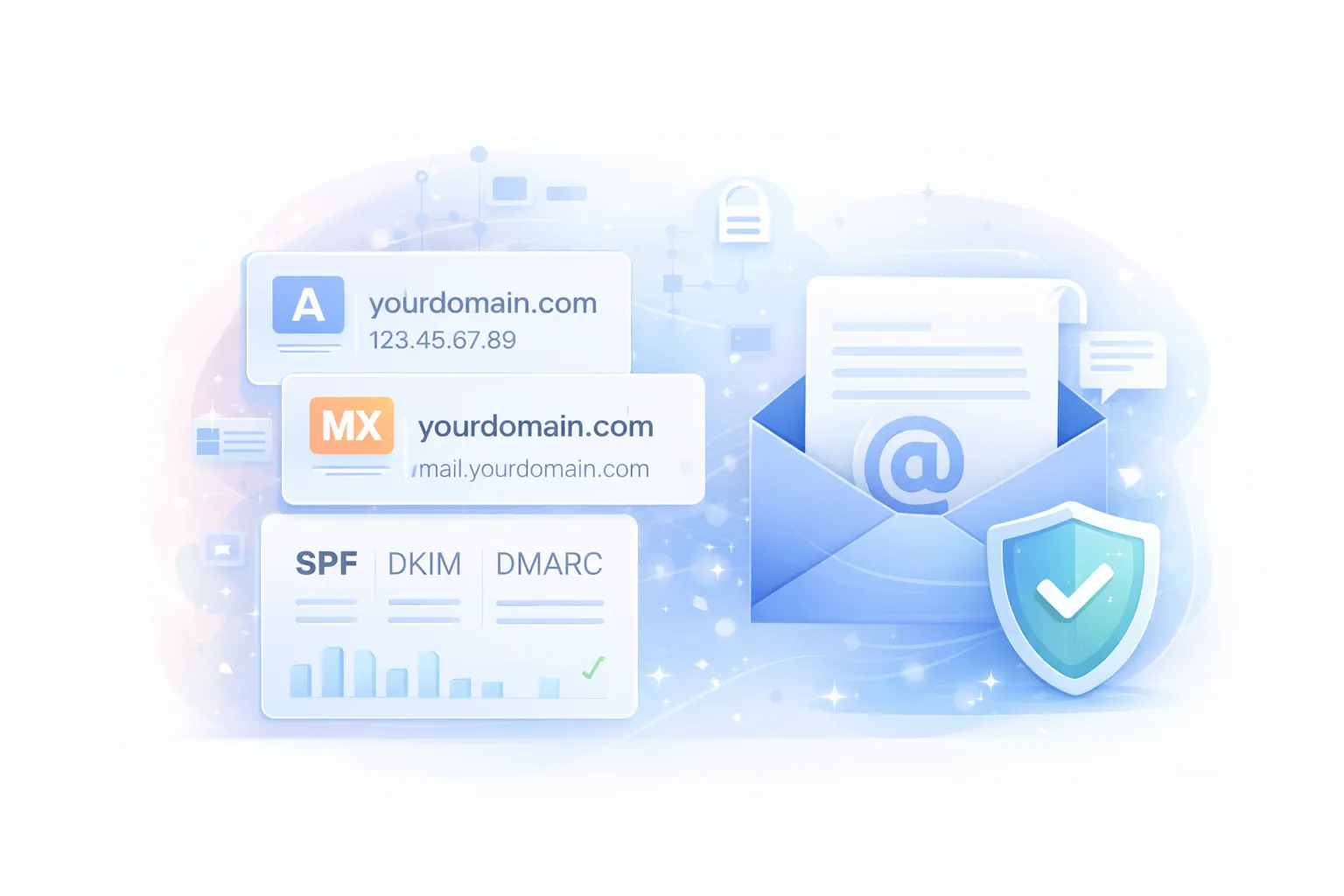
DNS records tell the internet where to find your website, email, and other services. If your domain uses GoZen Host nameservers, you manage DNS from cPanel’s Zone Editor.
No hosting account? If your domain is registered with GoZen Host but you don’t have a shared hosting plan - for example, you run your own VPS or use external hosting - you can manage DNS records directly from the Client Area. See Using the GoZen DNS Manager.
Where to Edit DNS Records
If your domain is on GoZen nameservers:
- Log into cPanel
- Go to Domains → Zone Editor
- Find your domain and click Manage
If your domain is at another registrar:
You’ll edit DNS at that registrar’s control panel. The record types and values are the same - only the interface differs.
Record Types
| Type | Purpose | Example |
|---|---|---|
| A | Points a domain to an IPv4 address | yourdomain.com → 192.168.1.1 |
| AAAA | Points a domain to an IPv6 address | yourdomain.com → 2001:db8::1 |
| CNAME | Alias - points one name to another | www → yourdomain.com |
| MX | Mail delivery - where email goes | yourdomain.com → mail.yourdomain.com (priority 0) |
| TXT | Text data - used for SPF, DKIM, DMARC, verification | v=spf1 +a +mx ~all |
| SRV | Service records - used by some apps (e.g., Microsoft 365) | Varies |
| CAA | Certificate Authority Authorization - who can issue SSL for your domain | 0 issue "letsencrypt.org" |
| NS | Nameserver delegation | ns1.gozenhost.com |
Adding a Record
- In Zone Editor, click Add Record
- Select the record type
- Fill in:
- Name - the hostname (e.g.,
@for the root domain,wwwfor the www subdomain,mailfor the mail subdomain) - TTL - Time to Live in seconds (3600 = 1 hour is a safe default)
- Value - the IP address, hostname, or text content
- Name - the hostname (e.g.,
- Click Save Record
Common DNS Setups
Point your domain to your server
  Type: A
Name: @
Value: your-server-ip
TTL: 3600
  Type: A
Name: www
Value: your-server-ip
TTL: 3600
Or use a CNAME for www:
  Type: CNAME
Name: www
Value: yourdomain.com
TTL: 3600
Set up email
If you’re using GoZen Host email (cPanel):
  Type: MX
Name: @
Value: mail.yourdomain.com
Priority: 0
TTL: 3600
If you’re using a third-party email service (Google Workspace, Microsoft 365), use their MX records instead. They’ll provide the exact values.
Verify domain ownership (Google, Microsoft, etc.)
Most services give you a TXT record to add:
  Type: TXT
Name: @
Value: google-site-verification=xxxxxxxxxxxx
TTL: 3600
SPF record for email
  Type: TXT
Name: @
Value: v=spf1 +a +mx +ip4:your-server-ip ~all
TTL: 3600
Editing and Deleting Records
In Zone Editor:
- Edit: Click the pencil icon next to the record, change the value, click Save
- Delete: Click the trash icon. Be careful - deleting the wrong record can break your email or website
DNS Propagation
After changing a DNS record, it takes time for the change to spread across the internet. This is called propagation.
| TTL Value | Propagation Time |
|---|---|
| 300 (5 min) | Usually under 10 minutes |
| 3600 (1 hour) | Up to 1–2 hours |
| 86400 (24 hours) | Can take up to 48 hours |
Pro tip: Before making DNS changes, lower the TTL to 300 a few hours ahead of time. This way, the old value expires from DNS caches faster and your change takes effect sooner. Set the TTL back to 3600 after the change is live.
You can check propagation and validate your DNS records at GoZen DNS Inspector. It checks A, MX, TXT (SPF/DKIM/DMARC), and nameserver health in one scan.
Troubleshooting
| Problem | Fix |
|---|---|
| Website not loading after DNS change | Check propagation - run a scan at GoZen DNS Inspector |
| Email not working | Verify MX records point to the correct mail server |
| SSL not issuing | Check that A record points to the correct IP and DNS has propagated |
| “Domain not pointed to this server” in cPanel | The A record doesn’t match your server IP - update it |
| Changes not taking effect | Check TTL - old cached values need to expire first |
What to Do Next
- Using the GoZen DNS Manager - manage DNS from the Client Area without a hosting account
- Pointing Your Domain to Your Server - a focused walkthrough for new setups
- Setting Up Email Accounts in cPanel - configure the email that your MX records point to
- SSL Certificates - SSL requires working DNS
Last updated 05 Apr 2026, 00:00 +0200.