Domains
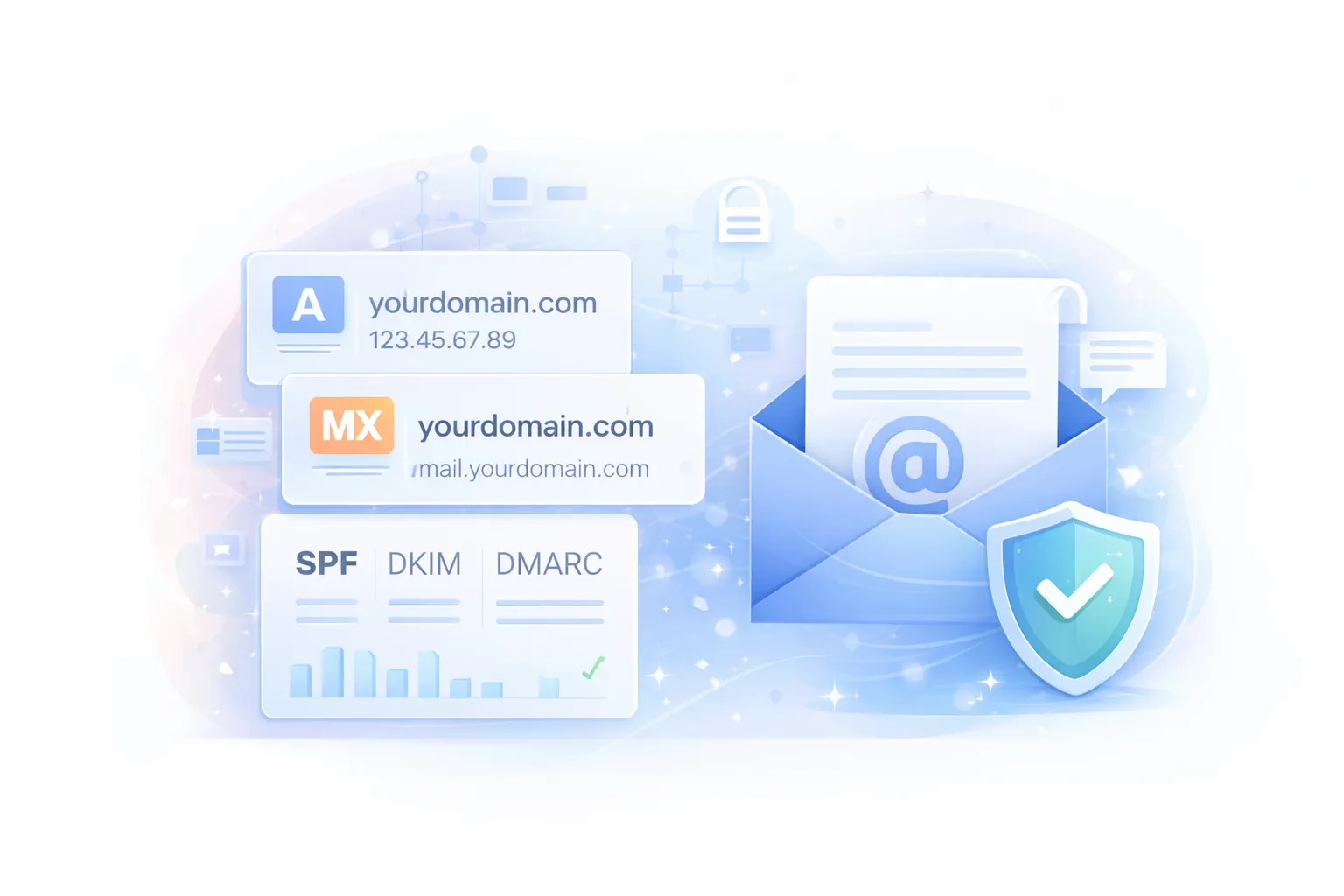
Domains are the front door of your online presence. This section shows you how to connect a domain to GOZEN HOST and how to avoid common DNS mistakes that break websites or email.
Quick actions
-
Point your domain to GOZEN HOST
Use nameservers or DNS records to connect your domain to your hosting service.
-
Set up email DNS correctly
Email deliverability depends on the right DNS records.
-
Fix email going to spam
SPF/DKIM/DMARC are not optional for business email.
Understand the basics (without the fluff)
Here are the DNS terms that matter most:
- Nameservers (NS): the DNS provider that answers queries for your domain.
- A record: points a hostname (like
@orwww) to an IPv4 address. - AAAA record: points a hostname to an IPv6 address.
- CNAME: points one hostname to another hostname (common for
www). - MX records: decide where your email is delivered.
- TTL: how long DNS answers are cached (higher TTL means slower changes).
Common problems and what they usually mean
- Website not loading after DNS change
- Usually: propagation delay, wrong records, or wrong target IP.
- Email stopped working after pointing the domain
- Usually: MX records were lost when changing nameservers.
- SSL won’t issue / HTTPS not working
- Usually: domain not resolving to the correct server yet.
DNS propagation reality check
DNS changes are not always instant. Some updates apply in minutes, others can take longer depending on TTL and caching. If you’ve just changed nameservers, it can take additional time for global resolvers to catch up.
Recommended path
If you’re setting up a new site, do it in this order:
- Point your domain
- Confirm your website loads
- Then set up email: - Email setup - SPF, DKIM, DMARC
Need help?
If you tell us your domain and what you’re trying to achieve (website, email, or both), GOZEN HOST can validate the DNS plan and help you complete the setup safely.