SSL Certificates in Enhance (Let’s Encrypt)
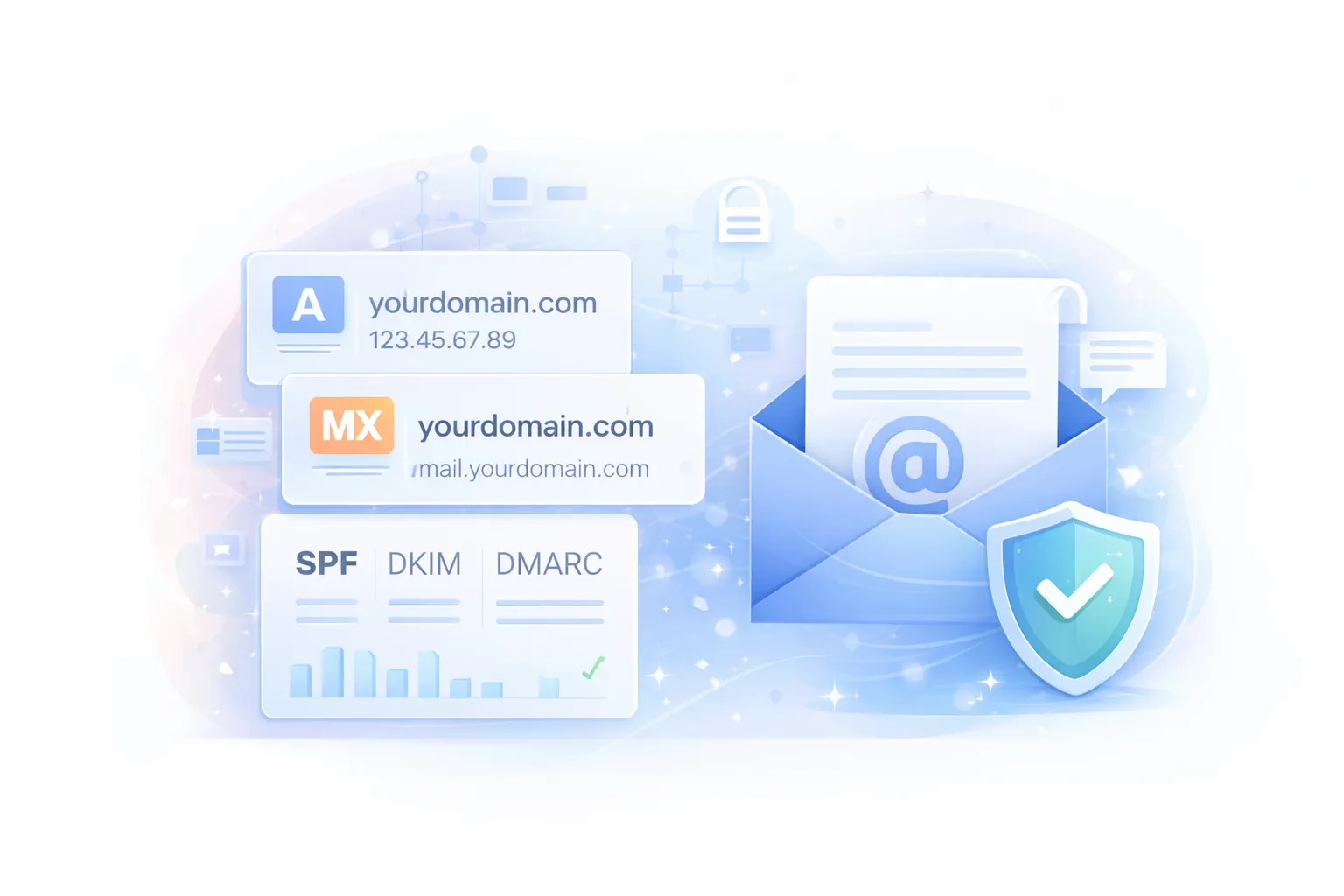
An SSL certificate enables HTTPS (the padlock in the browser). It encrypts traffic between visitors and your website and is a baseline requirement for:
- Login pages and checkout (WooCommerce)
- SEO and trust signals
- Modern browser compatibility (many features require HTTPS)
On GOZEN HOST Enhance-based hosting, SSL is designed to be hands-off for most customers.
How SSL works in Enhance
Enhance will automatically request a Let’s Encrypt certificate for every domain on a website (including staging domains) as long as the DNS points to a server in the Enhance cluster.
What to expect:
- A certificate is requested at the point of creation.
- Provisioning can take up to 5 minutes.
- During provisioning, a self-signed certificate may be used temporarily.
- Let’s Encrypt certificates are issued for 3 months, and Enhance will automatically request a new one 3 days before expiry.
Verify your certificate status
- In Enhance, open Websites.
- Select your website.
- Click Advanced then Security.
- Scroll to SSL certificates to view what’s currently installed.
Manually request (or re-request) a Let’s Encrypt certificate
Most sites never need this, but it’s useful after DNS changes or migrations.
- Open Websites.
- Select your website.
- Go to Advanced → Security.
- Scroll to SSL certificates.
- Open the menu for the domain and select Request Let’s Encrypt Certificate.
Let’s Encrypt backoff is real
If a certificate request fails repeatedly, Enhance applies a backoff to reduce rate-limit risk. Don’t spam retries. Fix DNS first, then request again.
Enforce HTTPS (redirect HTTP → HTTPS)
Having a certificate does not automatically force visitors to use HTTPS. You should enforce it.
Option A: Use Enhance Redirects (fastest)
- Open Websites.
- Select your website.
- Go to Advanced → Redirects.
- Click Add redirect.
- Choose 301 for a permanent redirect.
- Select the Domain and set the Destination URL to your HTTPS URL (example:
https://yourdomain.com). - Click Add.
Option B: Enforce HTTPS inside the app (WordPress/WooCommerce)
If you use WordPress, you can also enforce HTTPS inside WordPress settings and plugins. This is useful when you want application-level control, but the server-level redirect is usually cleaner.
Troubleshooting
“Let’s Encrypt certificate has not been issued”
Checklist:
- Confirm the domain’s DNS points to a server in the cluster.
- If the domain is a staging domain or subdomain, ensure the parent domain resolves too.
If you’ve verified DNS and it still won’t issue, open a GOZEN HOST ticket and we’ll diagnose the platform-side cause.
Certificate renewal failures
The most common causes are:
- An external proxy (example: Cloudflare) blocking the ACME challenge
- Inconsistent DNS (common one: an AAAA record pointing somewhere else)
If you use Cloudflare: - Ensure the record is set to DNS only while issuing/renewing, then re-enable proxy if needed.
Summary
- Enhance automatically provisions Let’s Encrypt certificates when DNS points correctly.
- You can re-request certificates via Advanced → Security.
- Always enforce HTTPS using a 301 redirect.