How to Create an Email Account in Enhance
Enhance can manage mailboxes directly when your hosting service includes email functionality. This guide shows how to create a mailbox (or forwarder-only account), access webmail, and connect email apps.
If you don't see an Email section
Your package may not include mailboxes, or email is provided as a separate product. If you’re not sure, open a ticket and we’ll confirm instantly.
Create a mailbox (or forwarder-only)
- Log in to your Enhance control panel.
- Open Email in the left sidebar.
- Click Add account.
- Enter the full email address (example:
info@yourdomain.com). - Choose the account type: - Mailbox (recommended, stores mail) - Forwarder-only (forwards mail, no storage)
- Complete the form (password, quota, forwarding target, etc).
- Click Add to finish.
Access webmail
Webmail is typically available at:
https://mail.yourdomain.com
Log in with: - Username: full email address - Password: mailbox password
Connect Gmail or Outlook (IMAP/SMTP)
Use the connection details provided by your hosting service for your mailboxes. These common defaults apply in most cases:
Incoming (IMAP)
- Port: 993
- Security: SSL/TLS
- Username: full email address
Outgoing (SMTP)
- Port: 587 (STARTTLS) or 465 (SSL)
- Authentication: required
Warning
Do not use port 25 for email apps. It is often blocked by networks and ISPs.
Recommended: Email authentication (SPF/DKIM/DMARC)
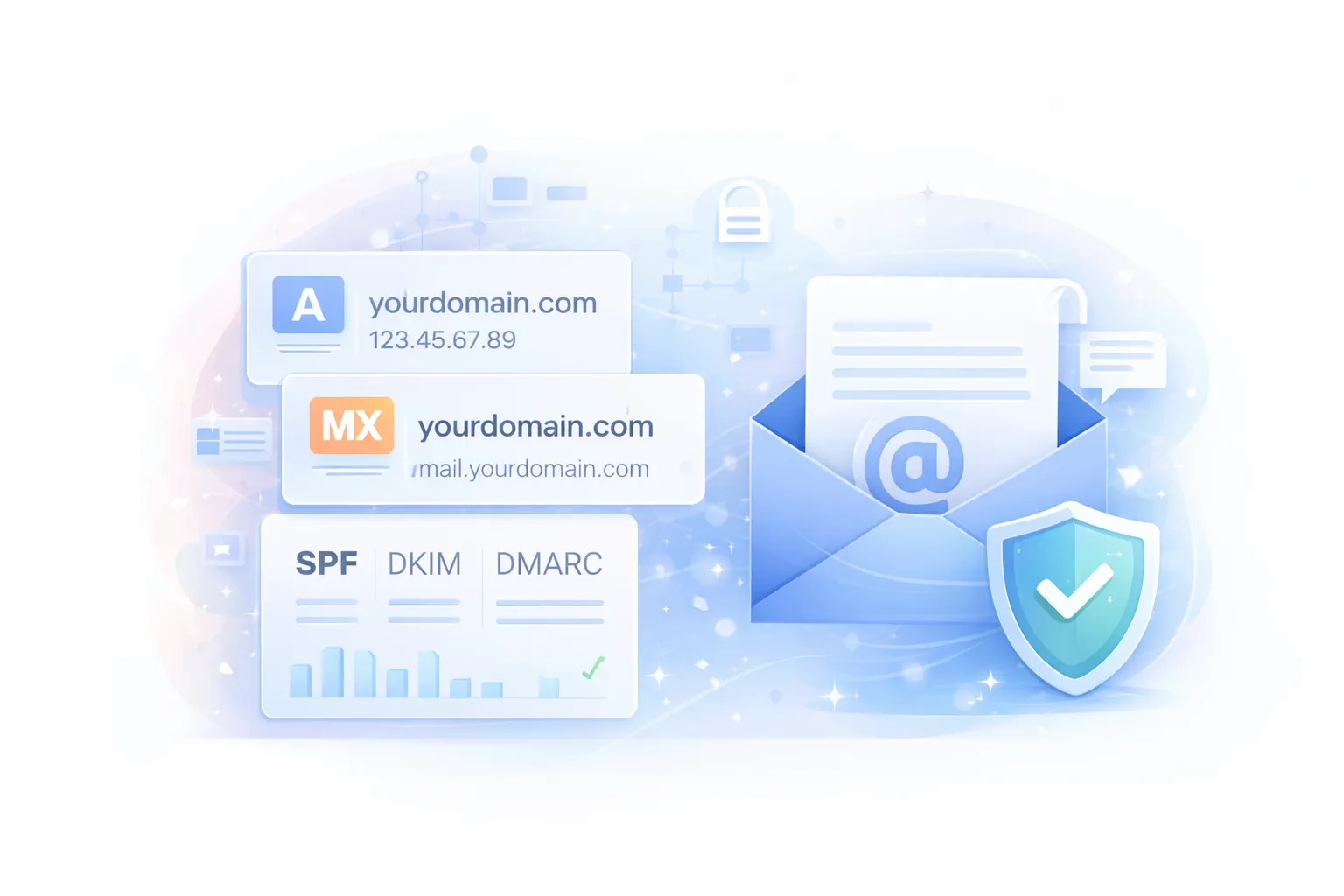
For professional deliverability, enable SPF, DKIM, and DMARC. If your DNS is hosted inside Enhance, it can validate automatically. If your DNS is hosted elsewhere, you’ll copy the records into your external DNS provider.
- Start here: Email → Email Authentication (SPF/DKIM/DMARC)
Troubleshooting
Email tab is missing
Your hosting package may not include email. GOZEN HOST can provision email hosting separately and keep your website hosting untouched.
Can’t send, but receiving works
- Verify SMTP authentication is enabled in your email app.
- Use port 587 or 465, not 25.
Password works in webmail but not in Outlook
Outlook often caches credentials. Remove the account from Outlook and add it again.
Summary
In Enhance, create email accounts via Email → Add account, access webmail on your mail subdomain, and connect devices with secure IMAP/SMTP settings. For inbox placement, configure SPF/DKIM/DMARC.