How to Create an Email Account or Forwarder in cPanel
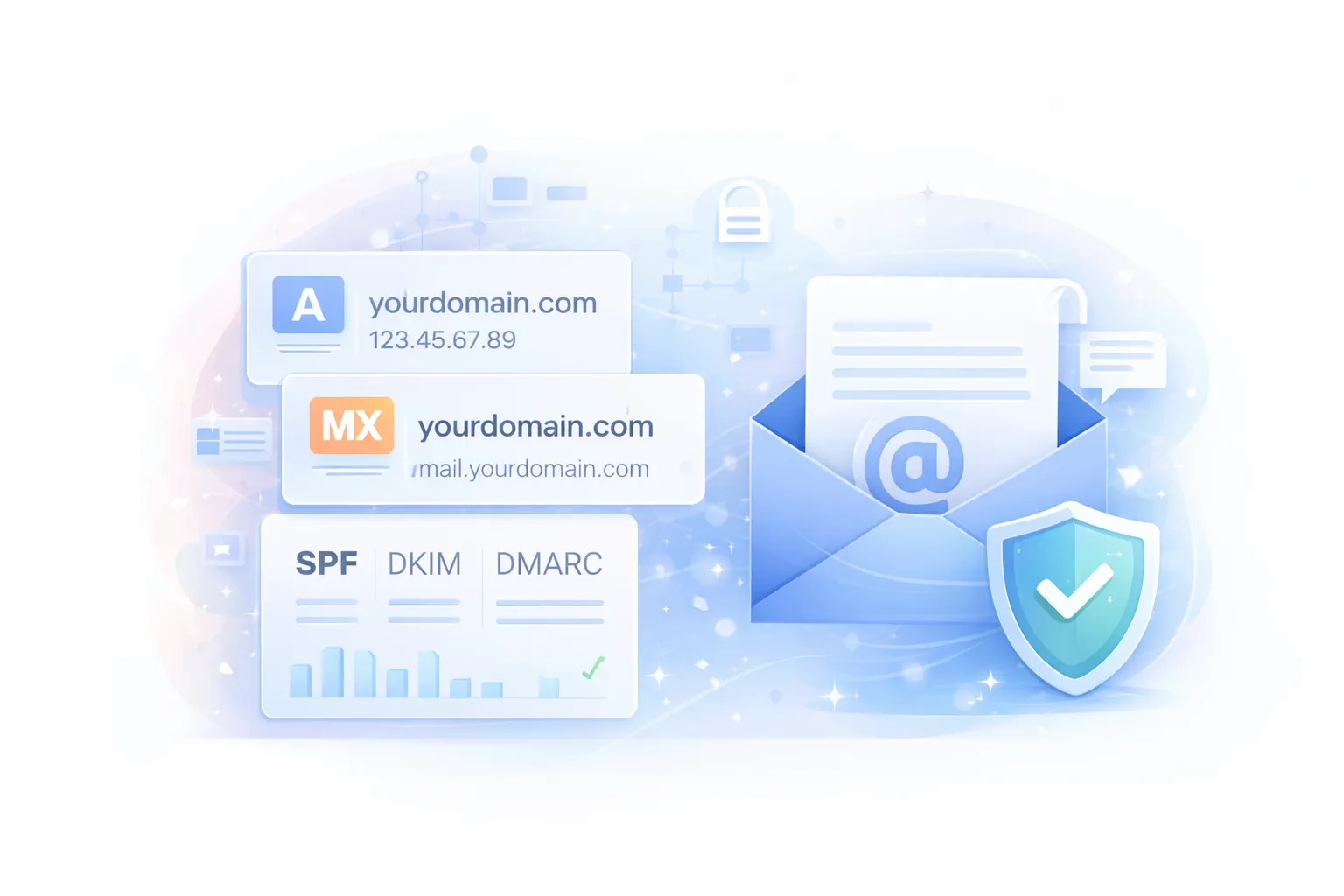
Creating email on your domain is the fastest way to look professional: info@yourdomain.com, sales@yourdomain.com, support@yourdomain.com.
In cPanel you have two main options:
- Mailbox (Email Account): stores email, supports webmail, and works with Gmail/Outlook via IMAP/SMTP.
- Forwarder: forwards incoming mail to another address (like Gmail), without storing it on the server.
This guide covers both, plus the exact settings you’ll need for email apps.
Before you start
Make sure your domain is using the correct DNS (nameservers) and that you have valid MX records. If you are unsure, start with: Domains → Point your domain.
Create a new mailbox
- Log in to cPanel.
- Go to Email → Email Accounts.
- Click Create.
- Choose the correct Domain.
- Enter:
- Username (example:
info) - Password (use the generator, long and unique) - Storage / Quota (choose a realistic value) - Click Create.
Note
If you are on a shared plan, mailbox limits and quotas depend on the package. If you hit a limit, open a ticket and we’ll advise the best upgrade path.
Create an Email Forwarder (forward-only address)
An Email Forwarder lets you receive mail on an address like sales@yourdomain.com and automatically forward it to another mailbox (example: yourname@gmail.com), without storing messages in the original address.
This is ideal for:
- Departments: sales@, billing@, support@
- Multiple recipients: forward to two or more mailboxes
- Keeping your personal inbox while presenting a professional address
Forwarders are not a mailbox
A forwarder does not have a password, does not log into webmail, and does not store email. If you need storage, create a mailbox first and then add forwarding.
Add a forwarder in cPanel
- Log in to cPanel.
- Go to Email → Forwarders.
- Click Add Forwarder.
- Fill in:
- Address to Forward: the local part (example:
sales) - Domain: select your domain - Choose destination:
- Forward to Email Address (example:
yourname@gmail.com), or - Advanced Options (pipe to program or discard, advanced use cases) - Click Add Forwarder.
Forward to multiple addresses
Create multiple forwarders for the same source address (or use a distribution-style mailbox if your setup supports it).
Example:
- support@yourdomain.com → agent1@yourdomain.com
- support@yourdomain.com → agent2@yourdomain.com
Edit or delete a forwarder
- cPanel → Email → Forwarders
- Use Manage (or Delete) next to the forwarder.
Best practices for forwarders (avoid deliverability surprises)
- Prefer forwarding to a mailbox on the same domain when possible.
- If you forward to Gmail/Outlook, make sure SPF/DKIM/DMARC is correct, otherwise forwarded mail is more likely to land in spam.
- For busy addresses (support/billing), consider using a real mailbox and connecting it to your helpdesk instead of chaining forwarders.
Access webmail
- In Email Accounts, find your mailbox.
- Click Check Email.
- Choose Roundcube (recommended for most users).
- Log in and send a test message.
Tip
If you get a certificate warning in webmail, use your server hostname or ensure your domain is pointed correctly, then retry.
Connect to Gmail or Outlook (IMAP/SMTP)
In Email Accounts, click Connect Devices next to the mailbox. cPanel will show your exact server values.
Use these common defaults (your server may differ):
Incoming mail (IMAP)
- Server:
mail.yourdomain.com - Port:
993 - Security: SSL/TLS
- Username: full email address (example:
info@yourdomain.com) - Password: mailbox password
Outgoing mail (SMTP)
- Server:
mail.yourdomain.com - Port:
465(SSL) or587(STARTTLS) - Security: SSL/TLS or STARTTLS
- Authentication: Required (same username and password)
Avoid port 25 for email apps
Many networks block port 25. Use 587 or 465 for reliable sending.
Recommended: enable SPF, DKIM, and DMARC
If you want inbox placement (not spam), you need proper email authentication.
- Start here: Email → Email Authentication (SPF/DKIM/DMARC)
Tip
GOZEN HOST support can help you validate your DNS records and sending identity if you run newsletters, transactional mail, or store emails.
Troubleshooting
“Authentication failed” in Outlook/Gmail
- Confirm you used the full email address as the username.
- Reset the mailbox password and try again.
- Recreate the account in the email app (cached wrong password is common).
You can receive emails but can’t send
- SMTP must use authentication.
- Use port 587 or 465 and the correct encryption method.
- Check if the destination provider blocks your sending behavior (rare, but it happens with compromised sites).
Emails go to spam
- Add/verify SPF, DKIM, DMARC.
- Avoid sending identical content to many recipients quickly.
- Make sure your website is not infected and sending spam.
Summary
You can create a mailbox from cPanel → Email Accounts, use Webmail immediately, and connect any device using Connect Devices. For deliverability, prioritize SPF/DKIM/DMARC.